JetBrains IDEs
While most of my work entails use of Visual Studio Code, I sometimes like to have dedicated IDEs for workflows I am already familiar with when I first started out learning each associated language. IntelliJ IDEA remains my staple for working with Java code, whilst CLion works well whenever I work on any C++ assignments.
I have also used WebStorm (JavaScript IDE, available for free), PhpStorm (PHP IDE) and PyCharm (Python IDE) before, but I have streamlined a lot of the work into VSCode just so I do not need to have multiple apps installed that can do essentially the same thing. Granted, I could extend this to Java and C++ development, but I found dealing with setups (and especially how much it sets up in a Java project) annoying enough to prefer working elsewhere.
Additionally, for quite some time only IntelliJ IDEA and PyCharm had free versions unless you signed up for student or teacher access (which required renewing each year). Opting for a Pro subscription or any of the other IDEs that do not have a free version comes with quite a hefty price. However, recently CLion and WebStorm have made it so they could be used for free for non-commercial use without needing student or teacher access, so I get to stick with CLion, which I absolutely still love using today. 😊
A lot of what I detail here may also apply to other IDEs (present or future), like Android Studio for instance (of which I have used before for a beginner Mobile App Development course, but I have not gotten back to it yet since I haven't built any mobile app since). If there comes a point where I get to work with any of those other IDEs for whatever reason, I will update this guide accordingly as much as I can.
Installation
You can download the installer files from JetBrains' website, or if you are on macOS, Homebrew is a good option.
brew install --cask intellij-idea   # IntelliJ IDEA
brew install --cask clion           # CLion
Updates generally can be done within the apps themselves; you should be notified if any updates are available, as well as check them from the app itself manually. However, having it on Homebrew does help especially if you do not intend on booting up the app just to proceed with updates.
General Setup
A lot of the visuals from here will match how the current versions look like, which currently as of late August 2026, it is around version 2026.2 across the two IDEs I currently use.
Install GCC or JDK first!
It goes without saying, but for whichever of the two you are installing, be sure that you have the JDK and/or GCC compiler of your choice installed for IntelliJ IDEA or CLion respectively!
Launching from Terminal
Interestingly, just like how VSCode and Sublime Text could be added to $PATH and allowing use of code and subl commands in the Terminal, you can also open IntelliJ IDEA and CLion with idea and clion respectively.
At the time of writing this guide, I only just found out about it, and I believe it's the same for the other JetBrains IDEs.
When launching any one of JetBrains' IDEs for the first time, you get a chance to import any settings from different IDEs (or any settings from other already used JetBrains IDEs, past or present).
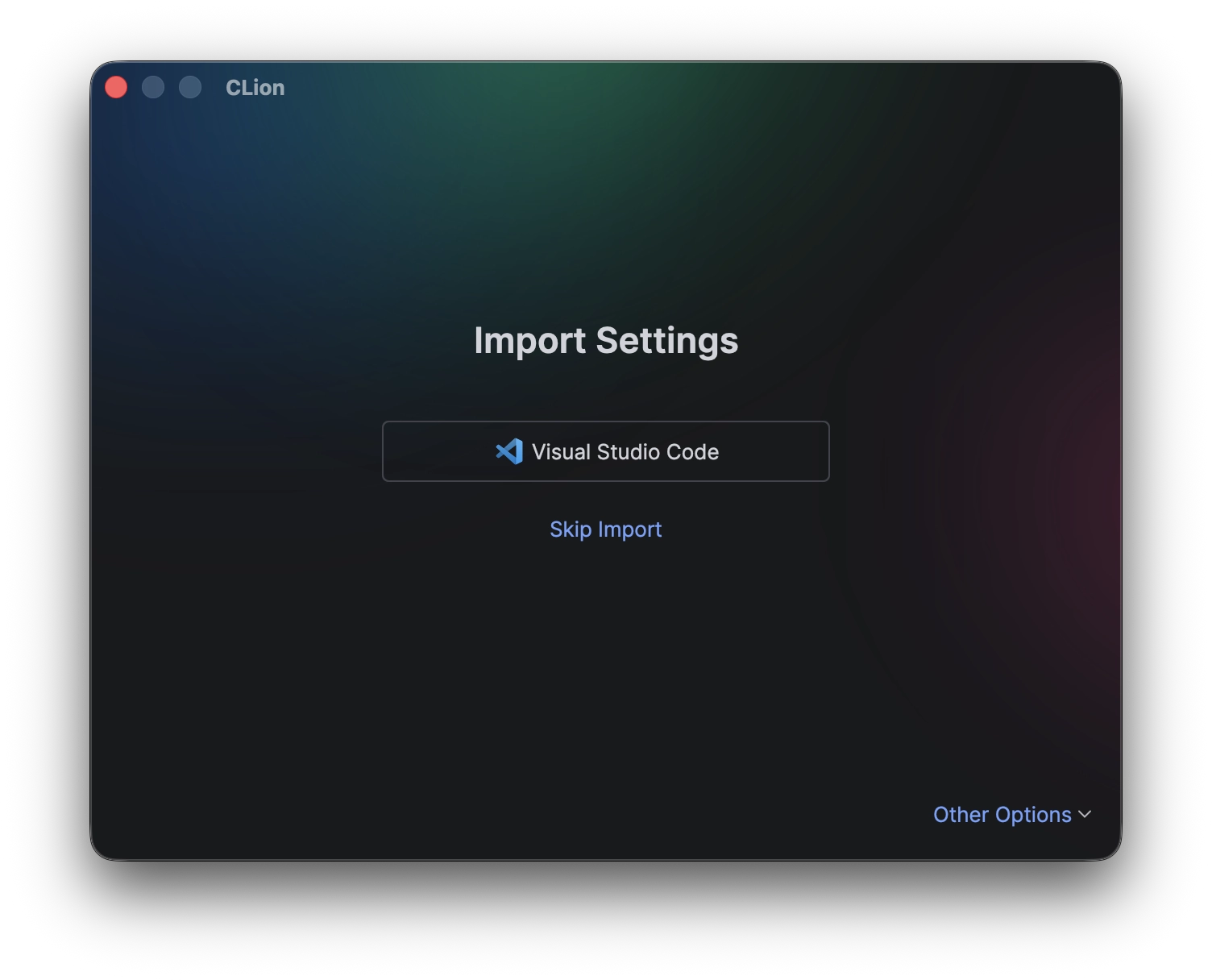
Personally, I typically like to start from a clean slate, so I tend to skip imports. However, here's a good place to get them settings ported over if you so choose. If you do, you get to select any or all (or none) of the settings found from those other IDEs to import over to your current JetBrains IDE.
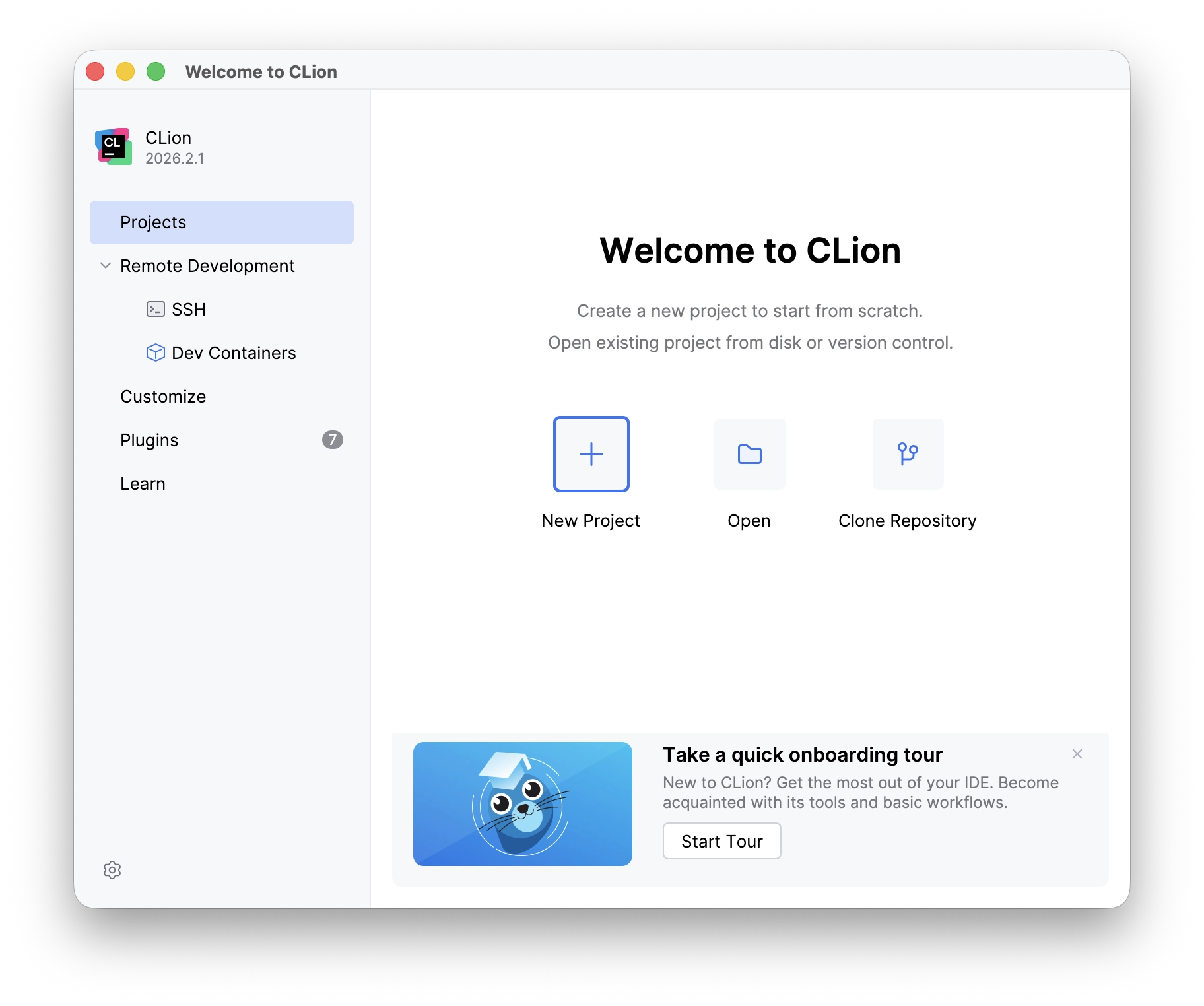
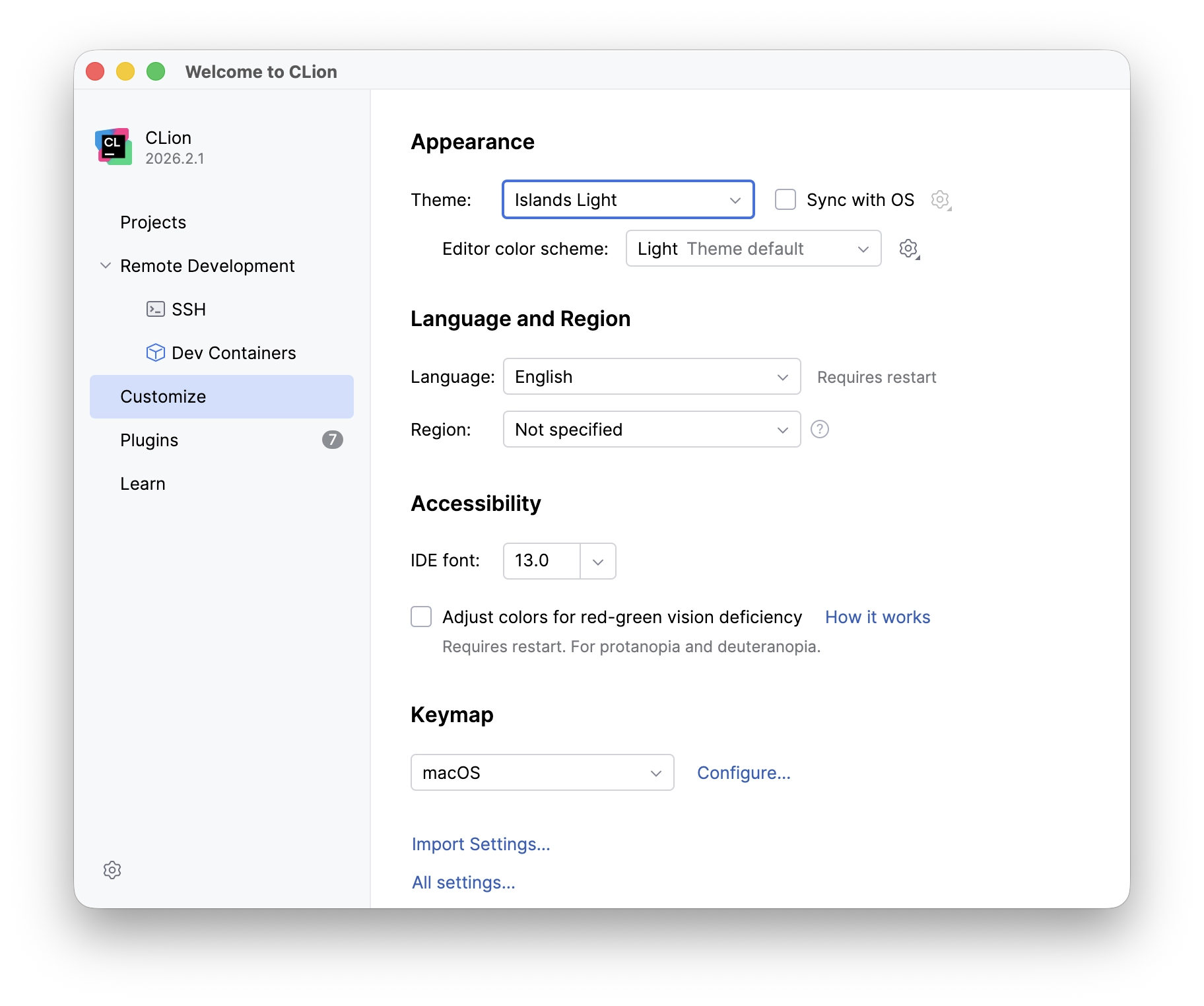
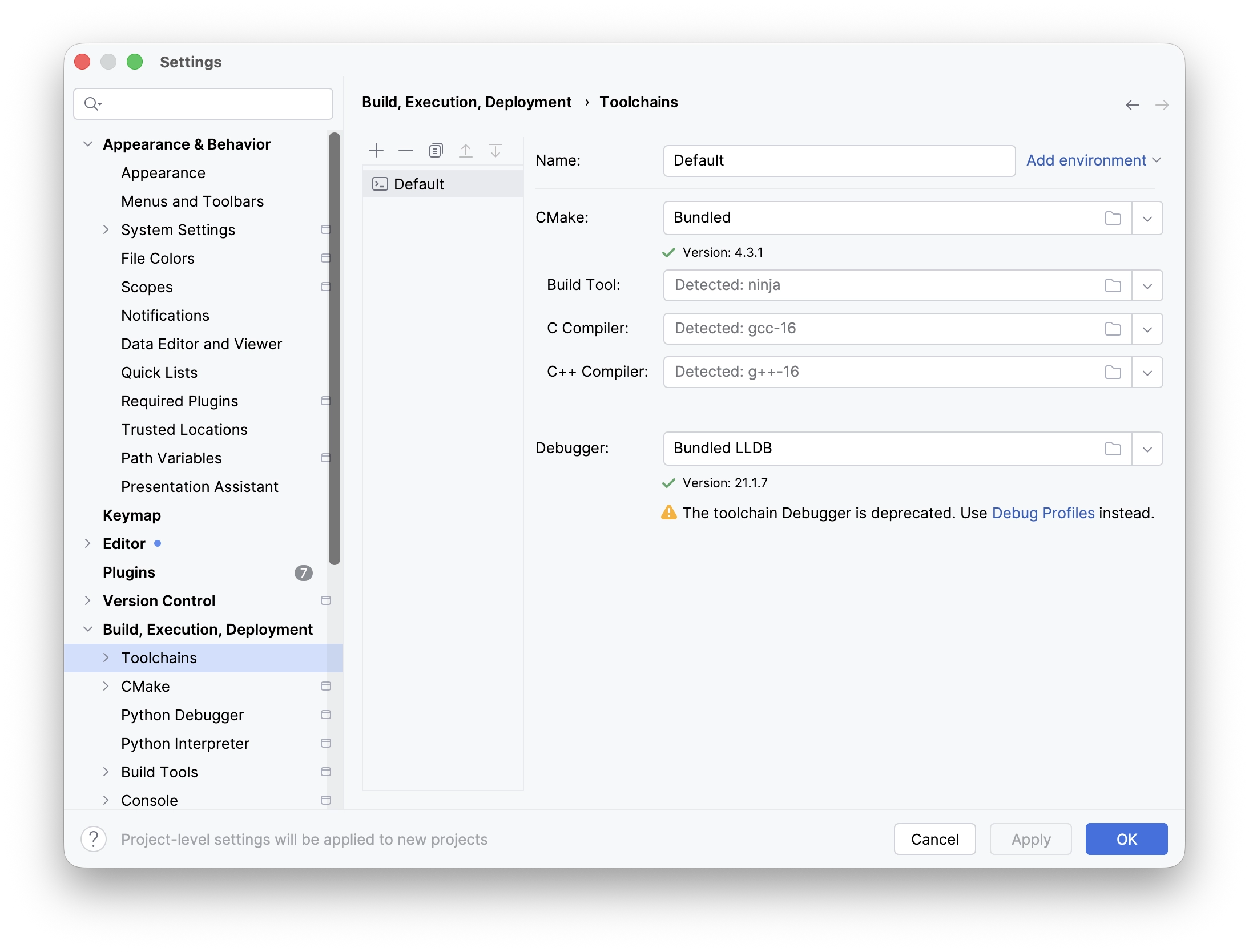
IntelliJ IDEA-specific Setup
Back when I was teaching ITS42004 Object-Oriented Programming in Taylor's, I would often refer to Tim Buchalka's guide (made in 2019) on how to set up IntelliJ IDEA for beginner programmers or those new to Java. You can view that right here, but since then JetBrains' IDEs have changed quite significantly appearance wise. As far as I have observed, though.. thankfully, one could really chalk it up to just the IDE having quite a facelift. 😊
Here's a list of settings recommended to help get started. These mostly come in the form of checking or unchecking boxes. Note which ones should be checked, and those that should be unchecked.
Editor \(\rightarrow\) General \(\rightarrow\) Auto Import
- Add unambiguous imports on the fly
- Optimize imports on the fly
Editor \(\rightarrow\) General \(\rightarrow\) Code Folding
These are settings meant to help make things easier for beginner and experienced programmers, essentially minimizing or hiding away some of the source code that isn't at the forefront demanding attention. However, when learning programming it's arguably better to have some of them visible so at least you are aware of what's going on.
Fold by default:
General
- File header
- Imports
Java
- One-line methods
- "Closures" (anonymous classes implementing one method, before Java 8)
- Generic constructor and method parameters
Editor \(\rightarrow\) General \(\rightarrow\) Appearance
- Show line numbers: Absolute
CLion-specific Setup
In a similar manner, here's what I will make sure is checked and/or unchecked.
Editor \(\rightarrow\) General \(\rightarrow\) Code Folding
Fold by default:
General
- File header
- Imports
Editor \(\rightarrow\) General \(\rightarrow\) Appearance
- Show line numbers: Absolute